 AI Mobile Coders
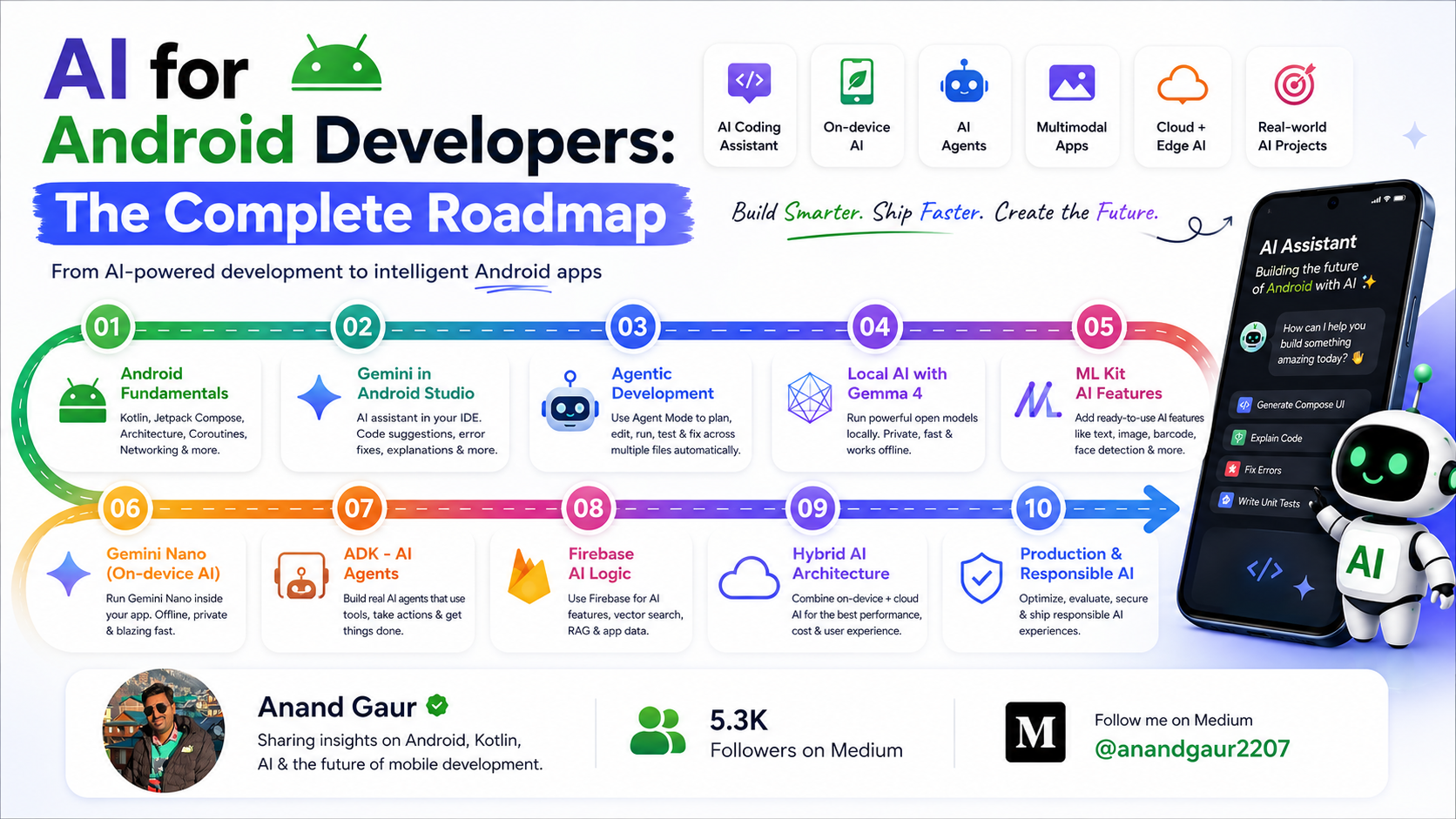
AI for Android Developers: The Complete Roadmap
How to use AI to build Android apps faster and how to build AI features into your apps. Explained step by step, beginner to advanced.

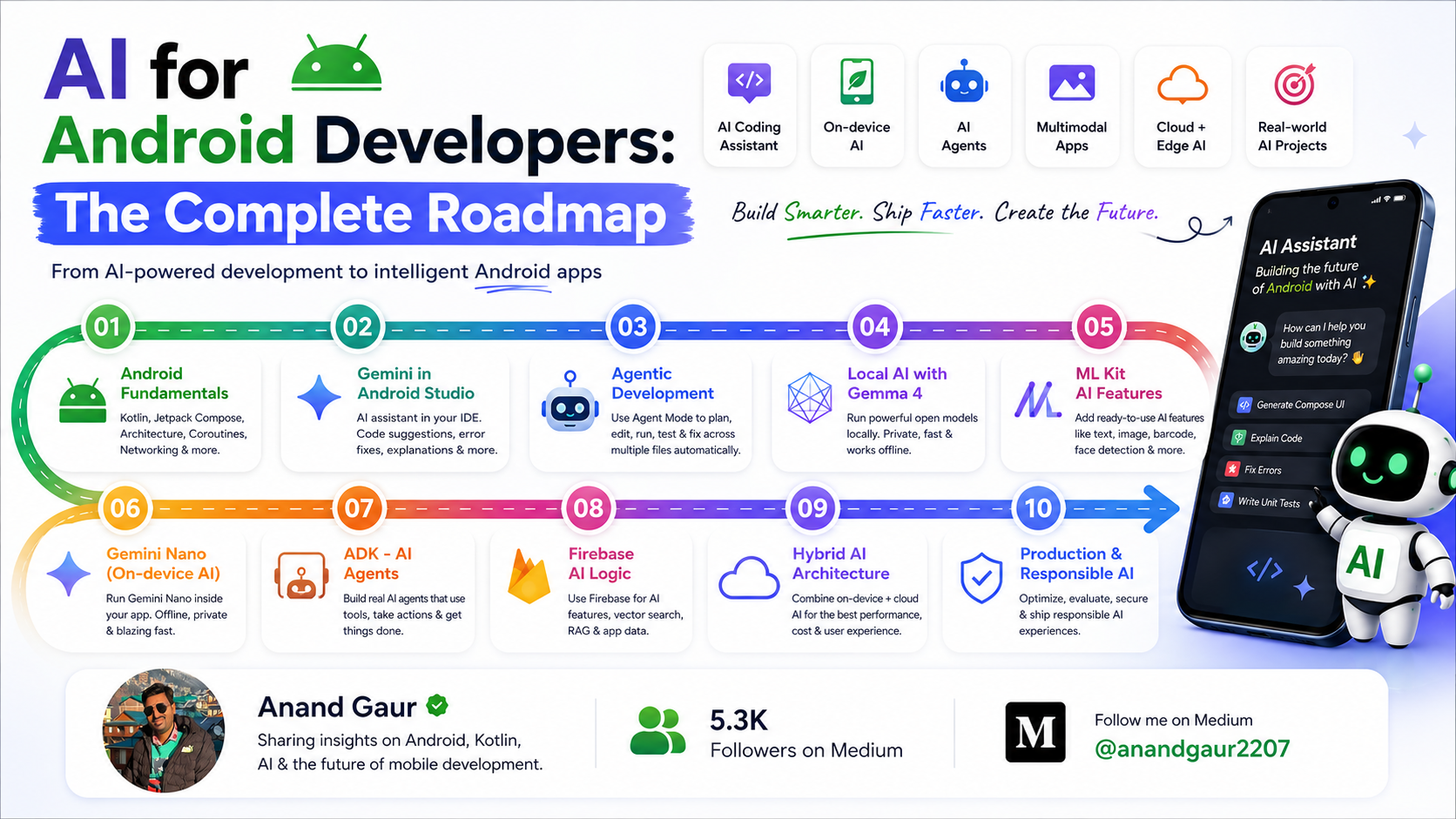
If you are an Android developer and you are not using AI yet, you are not “behind” but you are definitely working harder than you need to.
AI has quietly become a normal part of Android development. It now sits inside your code editor helping you write code, and it sits inside the apps users download, making those apps feel smart. Two different things. Both matter. And most blogs mix them up into one confusing mess.
This roadmap keeps them clean and separate.
Part 1 is about you using AI to build apps faster — the AI assistant living inside Android Studio.
Part 2 is about your app using AI — adding smart features like summarizing, translation, image understanding, and chat into the apps you ship.
We will go from absolute basics to advanced, in the right order. By the end you will know exactly what to learn, in what sequence, and what to build at each step.
One quick prerequisite. This roadmap assumes you can already build a basic Android app you know Kotlin, you know Jetpack Compose, and you understand things like ViewModels and making a network call. If you cannot do that yet, learn those fundamentals first. AI is an accelerator. It works best on top of real understanding, not instead of it.
Let’s begin.
PART 1: Using AI to Build Android Apps Faster
This part is about the AI assistant built into your tools. The main one for Android is Gemini in Android Studio an AI assistant made specifically for Android development, baked right into the IDE you already use.
It is not a separate app. It is a panel inside Android Studio that understands your project, your code, your Gradle files, and even your crash reports.
Stage 1: Get Set Up (Day 1)
Good news there is almost nothing to install. Recent versions of Android Studio (the ones named after animals, like Otter, Panda, and Quail) already include Gemini.
There are two ways to use it, and you should understand the difference:
- The free edition. A lightweight version of Gemini with a smaller context window (it can “see” less of your project at once). For most everyday tasks, this is genuinely fine, and it costs nothing. Start here.
- The upgraded edition. By adding your own Gemini API key, or subscribing through Google One or Gemini Code Assist, you unlock the full, more powerful models with a much larger context window (up to a million tokens). This means the assistant can understand much more of your codebase at once and handle bigger, more complex tasks. Move to this once you outgrow the free tier.
Open the Gemini panel in Android Studio, sign in, and you are ready. That is the whole setup.
Stage 2: Everyday AI Assistance — Your New Daily Habits
This is the level every Android developer should reach. These are small, safe, high-value uses of AI that you will do dozens of times a day. Build these habits first.
- Explain unfamiliar code. Open a file you do not understand, ask Gemini what it does, and read the explanation. This is the single best way to onboard onto a new codebase or understand an old library.
- Fix Gradle and build errors. Gradle errors are famously cryptic. Gemini is designed for the Android ecosystem, so it is genuinely good at reading a build error and telling you the likely cause and fix.
- Analyze crashes. When your app crashes, Gemini can read the crash report and stack trace, point to the probable cause in your code, and suggest a fix. This turns hours of confused searching into minutes.
- Generate Compose UI from a screenshot. You can hand it a picture of a design a mockup, even a rough sketch and it will generate the Jetpack Compose code for that screen. You then refine it.
- Write boilerplate. Data classes, repository skeletons, mapping functions, ViewModel scaffolding the boring, repetitive code. Let AI write the first draft.
- Write tests. Ask it to generate unit tests for a ViewModel or a function. Reviewing and fixing AI-written tests is far faster than writing them from scratch.
- Write documentation and commit messages. Comments, function docs, README sections, and clear Git commit messages.
The pattern for all of these is the same: AI writes the first draft, you review and correct. Never the other way around.
Stage 3: Agentic Development — Letting AI Do Bigger Jobs
This is the next level up, and it is where things get genuinely powerful. Modern Gemini in Android Studio includes an Agent Mode.
The difference between “chat” and “agent” is important. In chat, you ask a question and get an answer. In Agent Mode, you describe a goal, and the AI:
- makes a plan,
- decides which tools it needs,
- edits code across multiple files,
- runs the app,
- checks Logcat for errors,
- takes screenshots to verify the screen looks right,
- and iteratively fixes its own mistakes until the task is done.
You stay in control. The agent shows you each change and waits for you to approve or reject it (there is an auto-approve option, but use it carefully).
There is also a New Project Assistant that can generate an entire starter app from a text description and optional design mockups scaffolding, architecture, and Compose screens included. And for developers who want agent-driven workflows outside the IDE, there is an Android CLI option as well.
Good tasks to hand an agent: “add a settings screen with dark mode toggle,” “migrate this screen from XML to Compose,” “generate unit tests for this whole package,” “fix all the warnings in this module.”
A newer option — running the AI model locally with Gemma 4. Until recently, the AI in Android Studio always ran in the cloud. Now you have a choice. Gemma is Google’s family of open AI models open meaning the model itself is freely available, not locked behind an API. The latest, Gemma 4, was specifically trained on Android development and built with Agent Mode in mind.
What is genuinely new: you can now select Gemma 4 as a local model inside Android Studio, running on your own development machine. The full Agent Mode capabilities refactoring legacy code, building whole features, fixing bugs iteratively work with this local model. The benefit is privacy and independence: your code never leaves your computer, and you are not dependent on a network connection or per-token cloud cost.
So in 2026 you really have three setups to choose from: the free cloud model (easy, fine for most tasks), the upgraded cloud models (most powerful, larger context), and a local Gemma 4 model (private, offline, no per-use cost). Pick based on what the task and your situation need.
Stage 4: Working With AI Well — The Skill That Actually Matters
Here is the honest truth that separates developers who benefit from AI from developers who get burned by it.
AI is not magic and it is not your replacement. It is a fast, confident junior developer who is sometimes brilliant and sometimes completely wrong and never tells you which is which. Your job is to be the senior who reviews everything.
Follow these rules and you will do well:
- Never ship code you do not understand. If AI writes something and you cannot explain why it works, do not commit it. Ask it to explain, or rewrite it yourself. Code you do not understand is a debt that comes due at the worst possible time.
- Prompt with specifics. Vague prompts get vague code. Tell it your architecture, your libraries, your constraints. Give examples of patterns you like.
- Be firm with instructions. When working with new or experimental APIs, explicitly tell the model not to invent things AI sometimes “hallucinates” functions that do not exist. Clear instructions reduce this.
- Iterate. The first output is rarely perfect. Refine your prompt, add detail, and try again. Treat it as a conversation.
- Review everything for security and correctness. AI does not always know your app’s security needs or edge cases. You do.
- Keep your fundamentals sharp. The developers who thrive use AI to go faster at things they understand not to avoid understanding. Keep learning the platform itself.
Beyond Gemini in Android Studio, there are other capable AI coding tools you may encounter general-purpose assistants and agents that also work for Android. They are worth knowing about. But Gemini in Android Studio has one real advantage: it is purpose-built for Android, so it understands Compose, Gradle, and Android crash reports natively. Start there, then explore.
Milestone for Part 1: AI assistance is a natural, daily part of how you work and you never feel like you have lost control of your own codebase.
PART 2: Building AI Features Into Your Apps
Now we switch sides completely. Part 1 was about you using AI. Part 2 is about your users getting AI features inside the apps you build.
This is where you become genuinely valuable, because “the app that has a smart feature” beats “the app that doesn’t” almost every time.
Stage 5: Understand the One Big Choice — On-Device vs Cloud
Before any code, understand the single most important decision in app AI: should the AI run on the phone itself, or on a server?
On-device AI runs the model directly on the user’s phone.
- Strengths: it is private (data never leaves the phone), it works offline, it is fast (no network round-trip), and it is free to run (no per-request server cost).
- Weaknesses: it only works on capable enough devices, the models are smaller and less powerful, and they may need to be downloaded first.
Cloud AI sends the request to a powerful model running on Google’s servers.
- Strengths: far more powerful models, works on any device, no model download.
- Weaknesses: needs internet, adds network delay, costs money per request, and the user’s data leaves the device (so privacy must be handled carefully).
You do not have to pick one forever. The best apps often use a hybrid approach: do it on-device when possible, fall back to the cloud when needed. Keep this choice in your mind through every stage below.
Stage 6: Start Easy — ML Kit’s Ready-Made Features
Do not start with chatbots and generative AI. Start here. ML Kit is Google’s toolkit of ready-made, on-device machine learning features. You do not train anything, you do not understand the math you just call an API and get a result.
These features have existed for years, are rock-solid, and run on almost any device. They are the perfect first AI features to ship:
- Text recognition (OCR): read text from images and the camera.
- Barcode and QR code scanning.
- Image labeling and object detection: identify what is in a photo.
- Face detection: find faces, eyes, and expressions.
- Pose detection: track body position (great for fitness apps).
- Language identification and on-device translation.
- Smart Reply: suggest short replies in a chat.
Pick one and add it to a small app. A QR scanner, a business-card reader, a “translate this sign” feature. You will be surprised how little code it takes and you will have shipped your first AI feature.
Stage 7: On-Device Generative AI — Gemini Nano
Now we reach modern generative AI that runs on the phone. This is powered by Gemini Nano, a small but capable AI model that runs directly on supported Android devices.
A bit of how it works, so the pieces make sense:
- AICore is an Android system service that manages and runs these AI models on the device. You do not deal with it directly it just handles model downloading, hardware acceleration, and keeping requests private.
- The ML Kit GenAI APIs are the friendly, high-level way you actually use Gemini Nano. They give you ready-made generative features without you managing the model yourself.
The ML Kit GenAI APIs cover the most popular use cases out of the box:
- Summarization — turn a long article or chat into a short summary.
- Proofreading — fix spelling and grammar in short text.
- Rewriting — rephrase text in a different tone (more formal, more friendly).
- Image Description — generate a text description of an image.
- The Prompt API — the flexible one. Instead of a fixed feature, you send your own custom natural-language prompt (text, or text plus an image) and get a text response. Use this when the ready-made features are not enough and you need custom behavior.
Because all of this runs on-device, it is private, works offline, and costs you nothing per request. That is a huge deal for features touching personal data notes, messages, finances, health.
But you must handle the real world: not every device supports Gemini Nano, and the on-device model has a limited context size (it cannot read very long inputs). So the professional pattern is: check if the device supports it, use on-device AI when it does, and fall back to a cloud model when it does not. Build that fallback from the start.
Where Gemma fits in. You will hear two model names and they can be confusing, so here is the simple distinction. Gemini Nano is the model Google ships built into Android devices you reach it through the ML Kit GenAI APIs, and it is the default choice for most on-device features. Gemma is Google’s family of open models the weights are freely available under an open licence, so anyone can download, inspect, and run them. The latest, Gemma 4, is designed for on-device use and even powers the newest generation of Gemini Nano under the hood.
For most app developers, the practical takeaway is: use the ML Kit GenAI Prompt API, and on modern devices it runs the latest Gemma-based Nano model for you you get the benefit without managing anything. If you have a more advanced need running a specific Gemma model yourself, supporting devices outside the standard path, or experimenting with audio and vision you can run Gemma models directly using Google AI Edge and the LiteRT runtime. The Google AI Edge Gallery app is a great way to try Gemma models on a real device before you write any code. Start with ML Kit GenAI; reach for direct Gemma only when you genuinely outgrow it.
Milestone: you have shipped an app feature powered by on-device generative AI, with a graceful fallback for unsupported devices.
Stage 8: On-Device AI Agents — The Agent Development Kit (ADK)
This is one of the newest and most exciting additions to Android, so it gets its own stage.
So far, every AI feature we discussed answers you ask, it responds. An agent is different. An agent can plan and act: it can break a goal into steps, decide which tools to use, call those tools, look at the results, and keep going until the job is done. Think of the difference between “a smart text box” and “a smart assistant that actually does things for the user.”
The Agent Development Kit (ADK) is Google’s open-source framework for building exactly these agents and there is now an ADK for Android library built specifically for mobile. It supports Kotlin and Java, and lets you start with one simple agent and grow into complex, multi-agent systems.
Here is what makes ADK for Android genuinely powerful, in plain terms:
- Tools. You write normal Kotlin functions and mark them so the agent can use them. For example, a
getCurrentTime(city)function, orsearchContacts(name), orcreateReminder(text, time). The agent decides when to call them based on what the user asked. This is how an agent goes from talking to doing. - It runs on-device. ADK for Android can run agents locally using Gemini Nano through the ML Kit GenAI APIs. That means an agent that plans, uses tools, and acts all without the internet, keeping the user’s data on the phone.
- It also works with the cloud. You can point an agent at a cloud Gemini model when you need more power.
- Mixed (multi-agent) systems. This is the clever part. You can build a system where a powerful cloud agent acts as the “manager” that plans the overall task, and several smaller on-device agents act as “workers” that handle the privacy-sensitive steps locally. Best of both worlds cloud intelligence, on-device privacy.
A simple mental model: ML Kit GenAI (Stage 7) is for single smart actions — summarize this, rewrite that. ADK (this stage) is for multi-step jobs “find a free slot this week, draft an invite, and remind me an hour before.”
One important safety note that ADK’s own documentation stresses: never put an API key inside your app. For any cloud model, route the calls through a proper backend or through Firebase AI Logic so your keys are never exposed in code a user could extract.
Milestone: you can build a simple on-device agent that uses one or two of your own tool functions to actually accomplish a task for the user not just chat about it.
Stage 9: Cloud Generative AI — Firebase AI Logic and the Gemini API
When you need real power long documents, complex reasoning, image generation, advanced conversation you go to the cloud. For Android, the recommended path is Firebase AI Logic.
Firebase AI Logic lets you call Google’s Gemini models directly from your Android app, using a Kotlin SDK, without having to build and run your own backend server. That is a big convenience for solo developers and small teams.
What to learn here:
- The two API providers. Firebase AI Logic can connect to the Gemini Developer API (recommended for getting started it has a generous free tier and needs no credit card) or the Vertex AI Gemini API (for teams with enterprise or data-location requirements). Start with the Developer API.
- The Gemini models. You will use the current Gemini model family lighter, faster “Flash” models for quick, cheap tasks, and more powerful “Pro” models for hard reasoning. There are also image-generation models. Model names and versions change often, so always check the current documentation rather than hardcoding old ones.
- Multimodal input. Gemini models can understand more than text you can send images, audio, video, PDFs, and code, not just words. This unlocks features like “ask questions about this photo” or “summarize this PDF.”
- Streaming responses. For long answers, stream the output so text appears word by word instead of making the user stare at a spinner.
- The Gemini Live API. For real-time, low-latency voice and video conversations think live AI assistants. More advanced, but good to know it exists.
Crucial security point: never put your API key directly in your app’s code. Anyone can extract it and run up your bill. Firebase AI Logic is built to handle this properly, and you should also use Firebase App Check, which makes sure only your real, untampered app can call the API blocking abuse from bad actors.
Milestone: you can build a real cloud-powered AI feature a document summarizer, a smart assistant, an image-based search securely, without your own backend.
Stage 10: Advanced — Custom Models, Hybrid Architecture, and Doing It Properly
This is the senior level. Once you are comfortable with ML Kit, Gemini Nano, agents, and the cloud Gemini API, here is what takes you further.
- Custom models with LiteRT. Sometimes the ready-made options do not fit your exact problem. LiteRT (the runtime formerly known as TensorFlow Lite) lets you run your own custom-trained machine-learning model on-device. And MediaPipe provides ready-made pipelines for common media and vision tasks. Learn these when you have a specific need the standard APIs cannot meet.
- Prompt engineering as a real skill. In production, the quality of an AI feature depends heavily on how you write the prompt. Learn to write clear, constrained prompts; to give the model examples; to ask for structured output (like JSON) so your app can parse it reliably; and to set a “system” instruction that defines the AI’s role.
- Function calling / tool use. Modern Gemini models can call functions in your app. Instead of just returning text, the model can say “the user wants to set an alarm call your setAlarm function with these values.” This is how you build AI features that actually do things, not just talk.
- Grounding and reducing hallucinations. AI models sometimes confidently make things up. Learn techniques to ground responses in real data — feeding the model your own trusted information so it answers from facts, not guesses. (The general idea behind this is often called RAG retrieval-augmented generation.)
- The hybrid architecture, properly designed. Combine everything: cheap on-device AI for common cases, cloud AI for hard cases, smart caching, and clean fallbacks. Design it so the user gets the best available experience their device and connection allow.
- Cost, latency, and evaluation. Cloud AI costs money per request and adds delay. Learn to choose the cheapest model that is good enough, cache results, and measure quality. AI features need evaluation a way to check the output is actually good not just “it ran without crashing.”
Stage 11: Responsible AI — The Part You Cannot Skip
Adding AI to an app is not just a technical task. It is a responsibility. Before you ship any AI feature, think about this:
- Privacy and transparency. Tell users when AI is involved and what happens to their data. If data goes to the cloud, say so. Prefer on-device processing for sensitive information.
- Handle wrong answers. AI will sometimes be wrong. Design the feature so a wrong answer is not dangerous let users review and edit AI output, especially for anything important. Never let the AI silently do something irreversible.
- Safety and abuse. Generative models can produce harmful or inappropriate content if misused. Use the safety settings provided, and think about how your feature could be abused.
- Set expectations. Make it clear to users that a feature is AI-powered and may not be perfect. Honest framing builds trust; overpromising destroys it.
- Accessibility and fairness. Make sure your AI features work well for all your users, not just some of them.
A great AI feature is not the flashiest one. It is the one that is genuinely helpful, honest about its limits, and respectful of the people using it.
A Realistic Timeline
For a developer who already knows Android basics, here is a sane pace:
- Week 1: Set up Gemini in Android Studio. Build the daily habits from Stage 2.
- Weeks 2–3: Get comfortable with Agent Mode and the agentic workflow (Stage 3), try a local Gemma 4 model, and lock in the good-practice discipline of Stage 4.
- Weeks 4–5: Add a ready-made ML Kit feature to a small app (Stage 6). Ship it.
- Weeks 6–8: Build an on-device generative AI feature with Gemini Nano and ML Kit GenAI APIs (Stage 7).
- Weeks 9–10: Build your first on-device AI agent with ADK for Android (Stage 8).
- Weeks 11–13: Build a cloud-powered AI feature with Firebase AI Logic (Stage 9), done securely.
- Month 4 onward: Advanced topics custom models, hybrid architecture, prompt engineering, multi-agent systems, and responsible AI (Stages 10–11) — learned through real projects.
This is a guide, not a rule. Go at the pace that lets you actually understand each step.
Project Ideas to Build Along the Way
Reading this roadmap will not make you good at AI features. Building will. The projects below are grouped so you can pick what matches your current stage — and most of them solve a real everyday problem, which also makes them great portfolio pieces.
Starter projects (Stages 6–7) — learn the basics:
- A smart note-taking app — uses on-device summarization and rewriting (Gemini Nano) to clean up and shorten messy notes.
- A receipt or document scanner — ML Kit text recognition, plus AI to extract and organize the data into structured fields.
- An image describer for accessibility — describes photos out loud for visually impaired users (on-device image description).
Real-life problem-solving projects (Stages 7–9) — solve something that actually matters:
- A medicine reminder for elderly parents — point the camera at a medicine strip or prescription, and AI reads the name, dosage, and timing, then sets reminders automatically. Solves a genuine daily struggle in many families, and works offline so it is reliable.
- A “what can I cook” app — the user photographs the ingredients in their fridge, and AI suggests recipes they can make right now. Reduces food waste and the daily “what’s for dinner” problem.
- A study helper for students — snap a photo of textbook pages or handwritten notes, and the app summarizes them, generates flashcards, and creates practice questions. Real value for exam season, and most of it can run on-device for privacy.
- A bill and expense splitter — photograph a shop bill or restaurant receipt, AI reads every line item, and the app splits the total fairly among friends. Solves an awkward, common situation cleanly.
- A government-form assistant — many people struggle with official forms in a language they are not comfortable with. The app reads a form via the camera, explains each field in simple language, and translates it. Genuinely useful in multilingual countries.
- A farmer’s crop helper — a farmer photographs a diseased leaf or crop, and AI identifies the likely problem and suggests next steps. On-device matters here because rural network coverage is poor a strong real-world case for offline AI.
- A symptom-to-doctor helper — the user describes how they feel in plain language, and the app explains possible causes in simple terms and suggests which type of doctor to consult. (Be careful and responsible here it must clearly say it is not a diagnosis and always recommend seeing a real doctor.)
- A waste-sorting helper — point the camera at an item and the app tells you which bin it goes in (recyclable, wet, dry, e-waste). Small app, real environmental impact, mostly on-device.
- A “scam message” checker — the user pastes a suspicious SMS or message, and on-device AI flags whether it looks like a scam and explains why. Helps protect less tech-savvy users, and stays private because nothing leaves the phone.
Agent projects (Stage 8) — let the app actually do things:
- A personal day-planner agent — the user says “schedule a 30-minute walk tomorrow and remind me,” and the agent uses your tool functions to check the calendar, create the event, and set the reminder multiple steps from one sentence.
- A “tidy my inbox” agent — the user describes a goal in plain words, and the agent uses tools to categorize, summarize, and draft replies, step by step.
- A travel-prep agent — give it a destination and dates, and it builds a checklist, drafts an itinerary, and sets reminders, combining a cloud “planner” agent with on-device “worker” agents for the private parts.
Advanced project (Stages 9–10):
- A “chat with your documents” app — the user uploads PDFs (contracts, manuals, reports), asks questions in plain language, and gets answers grounded in those specific documents (cloud, multimodal, with grounding/RAG).
Each one teaches a different piece. Finish them a finished, slightly rough app teaches more than a perfect tutorial you only watched. And if a project solves a real problem for real people, it belongs on your resume.
Third-Party AI APIs You Can Use
So far this roadmap focused on Google’s ecosystem, because it is the most natural fit for Android. But you are not limited to it. Many of the best AI models come from other companies, and you can use almost all of them from an Android app.
Here is the single most important idea first: almost every one of these is just a REST API. That means you do not need a special “Android SDK” to use them. If you know how to make a network call with Retrofit and OkHttp (Stage 6 of this roadmap), you already know how to call them. You send a JSON request, you get a JSON response. That is it.
And here is the single most important rule: never put these API keys inside your Android app. Unlike Google’s Firebase AI Logic, most of these providers have no built-in protection for mobile apps. A key shipped in your app can be extracted and abused, and you pay the bill. The correct, professional pattern is always the same: put a thin backend server in the middle. Your app talks to your server, your server holds the key and talks to the AI provider. Treat this as non-negotiable for any real app.
With that said, here are the main third-party options.
OpenAI (GPT models). The most widely known AI API, behind ChatGPT. Its GPT models are strong all-rounders for chat, reasoning, writing, code, and vision. The API is a simple REST endpoint, and OpenAI’s request format has become so common that many other providers copy it (called “OpenAI-compatible”), which makes switching easier.
Anthropic (Claude models). Claude models are known for strong reasoning, careful instruction-following, long-context understanding, and writing quality popular for assistants and document-heavy features. Anthropic provides an official Java/Kotlin SDK (the Anthropic Java SDK, written in Kotlin), so JVM and Android developers get a clean, type-safe client. Anthropic also offers an OpenAI-compatibility layer for easy testing. docs.claude.com and github.com/anthropics/anthropic-sdk-java
xAI (Grok models). Grok is xAI’s model family. Its API is OpenAI-compatible, which is genuinely convenient it means code or libraries built for OpenAI often work with Grok by just changing the endpoint URL and key.
Hugging Face. Hugging Face is less “one model” and more “the home of open AI.” It hosts hundreds of thousands of open models for text, images, audio, translation, and more. Its Inference API lets you call many of these hosted models with a simple HTTP POST request, which is perfect for an Android app using OkHttp. It is great when you want a specialized or open model rather than one big commercial provider. You can also deploy a model as a Hugging Face “Space” and call that.
Other providers worth knowing. The space is wide. Mistral AI offers strong, efficient open-weight models. Cohere focuses on enterprise text, search, and RAG. Groq (note the spelling different from Grok) is not a model maker but a service that runs open models extremely fast. OpenRouter is a single API that gives you access to many providers at once through one endpoint useful if you want to switch or compare models without rewriting code.
A practical tip for handling many providers. Because so many of these APIs share the OpenAI-compatible format, you can often build your app to talk to one interface and swap the model behind it. There are also community Kotlin libraries for example, multi-provider Kotlin Multiplatform clients that give you a single, unified way to call OpenAI, Claude, Gemini, and more. This is handy for adding a fallback model or letting users choose.
So how do you choose? A simple way to think about it:
- Building an Android app and want the easiest, safest path? Stay with Google’s stack Gemini Nano on-device and Firebase AI Logic for the cloud, since it is built for mobile and handles key security for you.
- Need a specific model’s strengths (a particular Claude, GPT, or Grok capability)? Use that provider’s API through your own backend.
- Want open models, variety, or specialized tasks? Hugging Face.
- Want to switch or compare models freely? An OpenAI-compatible setup or OpenRouter.
There is no single “best” there is only the best fit for your feature, your budget, and your users. The skill is knowing the options exist and choosing deliberately.
Summary
Here is the simplest way to think about everything in this roadmap.
AI now sits on both sides of your work. On one side, it helps you write Android code faster through Gemini in Android Studio, and now even local open models like Gemma 4. On the other side, it lets your apps do smart things for users through ML Kit, Gemini Nano, on-device agents built with ADK, and the cloud Gemini API. Learn both. They make you twice as valuable.
But never forget the one principle that runs through this whole roadmap: AI is a powerful tool, and you are still the engineer. It drafts; you decide. It suggests; you verify. It accelerates; you understand. The developers who win in 2026 are not the ones who let AI think for them they are the ones who think clearly and wield AI well.
So start small. Open Android Studio today, talk to Gemini, and ask it to explain a file you have been avoiding. Then build one tiny app with one ML Kit feature. That is Stage 1 and Stage 6 done and you are already on the road.
You do not need to learn all of this at once. You just need to start. Pick the next stage, build the next small thing, and keep going.
Now go build something smart.
If this roadmap helped you, save it and revisit it at the start of each stage. And remember every developer shipping impressive AI features today started exactly where you are: at Stage 1, opening the Gemini panel for the first time.
More like this
 Android
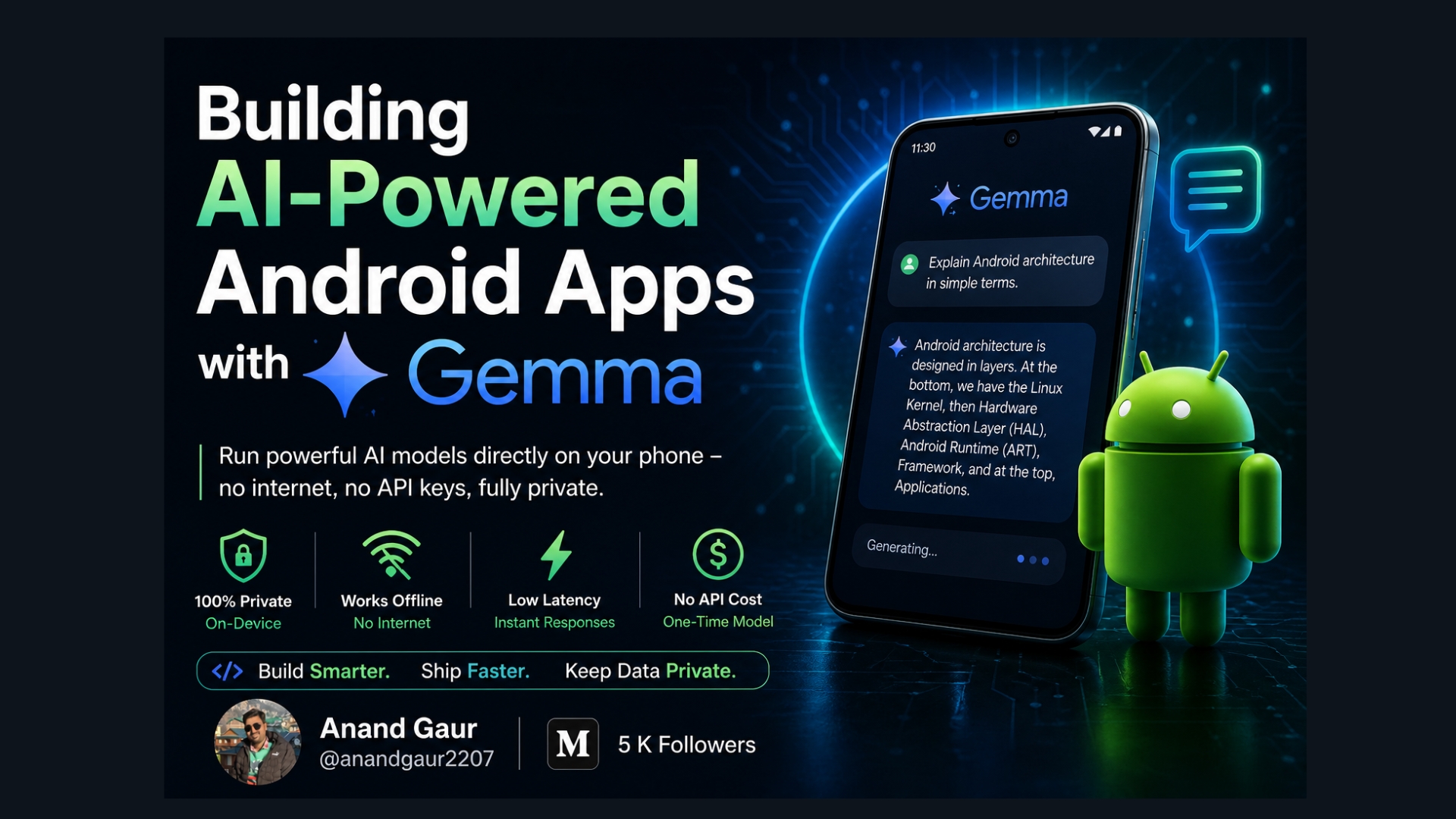
Building AI-Powered Android Apps with Gemma
AI is no longer limited to servers or cloud APIs. Today, you can run powerful mo...
 Android
Google I/O 2026 for Android Developers
If you watched the main Google I/O 2026 keynote on May 19 expecting Android news...
 Android
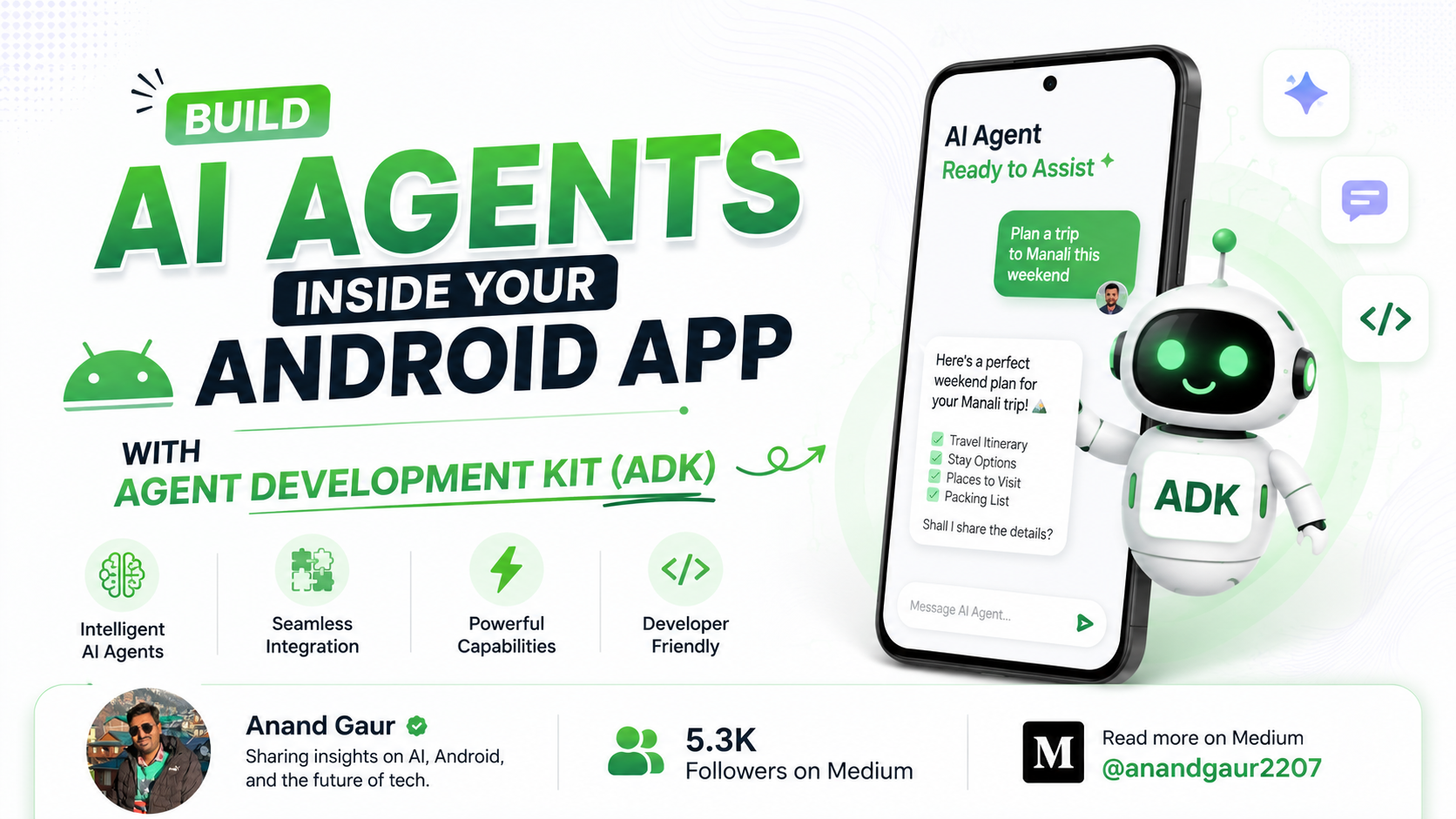
Build AI Agents Inside Your Android App with Agent Development Kit (ADK)
Google just made it possible to put real, thinking AI agents directly inside you...